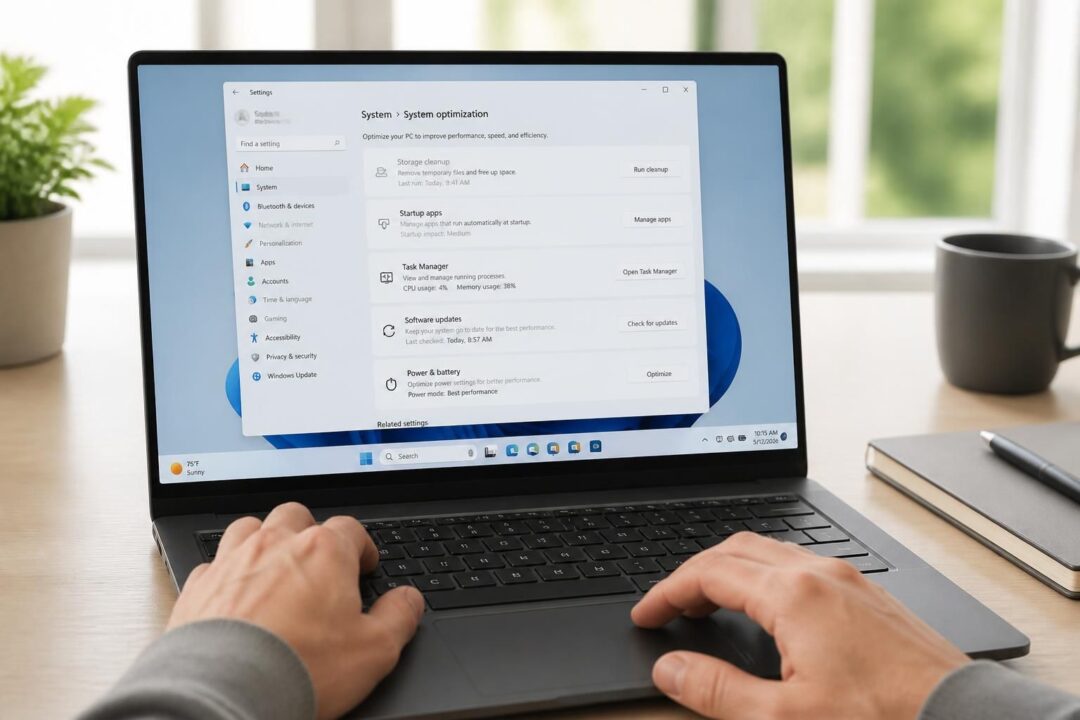

In brief
- Registry cleaner claims often oversell PC speed, because most slowdowns come from storage pressure, startup overload, or aging hardware rather than the Windows registry.
- Microsoft does not endorse third-party registry cleaning and has long argued it does not deliver meaningful PC speed gains.
- In controlled testing on Windows 11 and Windows 10, the biggest benefits showed up as stability fixes (fewer odd errors) rather than a dramatic performance boost.
- Safe tools back up first, explain what they found, and avoid scare tactics around “thousands of errors.”
- Free options can be solid, yet system optimization suites may add value through scheduling and broader system maintenance.
A sluggish Windows PC can feel personal: apps hesitate, boot times creep upward, and odd error pop-ups appear at the worst moment. That frustration often sends people searching for a “top-rated registry cleaner” promising instant speed optimization. Yet the Windows ecosystem has matured, and many modern slowdowns trace back to crowded SSDs, heavy background sync, or startup bloat rather than a bloated Windows registry. Consequently, the registry-cleaning debate keeps resurfacing: does pruning orphaned keys actually improve computer performance, or does it simply scratch an itch?
This software review takes a practical approach. Six widely recommended tools were installed on Windows 11 and Windows 10 systems and run against the same machines. The goal was not to chase the biggest “issues found” number. Instead, the focus stayed on safety, clarity, cost, and whether a cleanup translates into measurable day-to-day responsiveness. Along the way, a recurring pattern emerged: the best products behave like cautious maintenance utilities, while the worst behave like alarmist sales funnels. The difference matters, because the registry is not a junk drawer—it is closer to a shared control panel for Windows and many programs.
Do Registry Cleaners Actually Speed Up Your PC? What the Windows Registry Really Does
The Windows registry acts as a centralized store for configuration settings, file associations, and system behaviors. Programs use it to remember preferences, register components, and define how Windows should open certain file types. Over months of installs, updates, and removals, the registry can collect leftover entries that point to missing files or old paths. Therefore, the sales pitch for a registry cleaner sounds logical: remove dead references, reduce clutter, and reclaim PC speed.
However, registry “clutter” rarely behaves like physical clutter. The registry is indexed and designed for fast lookups. That design means a few hundred or even a few thousand orphaned keys do not usually create the kind of drag that users feel as lag. In addition, modern Windows versions handle configuration reads efficiently, so the typical bottlenecks sit elsewhere, such as background services, browser extensions, and full system drives. As a result, many users see little to no visible performance boost after cleaning.
Why Microsoft Pushes Back on Registry Cleaning Claims
Microsoft has repeatedly stated that registry cleaners do not speed up a PC and does not support third-party registry cleaning utilities. That stance matters because Windows updates and system components can depend on keys that look “unused” to a simplistic scanner. Moreover, registry entries can be shared across multiple applications, so a removal can break a feature that was not active at the time of scanning. Those risks explain why Windows does not include a built-in registry cleaner.
Still, that does not mean every cleaner is reckless. A careful tool can help remove clearly invalid references from uninstalled software. For instance, when a legacy printer driver leaves behind shell extensions, Explorer can become unstable. In that scenario, targeted cleanup sometimes reduces crashes and odd right-click delays. Consequently, the best use case centers on system maintenance and troubleshooting, not instant speed optimization.
A Grounded Example: “Mara’s Office PC” and the Myth of Instant Speed
Consider a typical small-business setup: “Mara,” an office manager, uses a Windows 11 laptop that slowly became unreliable after years of accounting software updates. The machine boots slowly, and Excel add-ins load forever. A registry scan might find thousands of entries, yet removing them rarely cuts boot time in half. Instead, the real win often comes from disabling startup items, clearing junk files, and freeing disk space so Windows can manage updates and paging effectively.
Nevertheless, a conservative registry pass can help after a messy uninstall. If Mara removed an outdated PDF tool that added context-menu hooks, cleaning a few invalid COM registrations may stop Explorer hiccups. The key insight is simple: registry cleaning can tidy, but it seldom transforms computer performance on its own.
How These Top-Rated Registry Cleaners Were Tested on Windows 11 and Windows 10
To keep the comparison fair, six tools that appear frequently in reputable roundups were tested across two systems: one running Windows 11 and one running Windows 10. Each product was installed fresh, updated to its current build, and run with default settings first. After that, deeper scan modes were tried when available. Importantly, results were judged less by raw “issues found” and more by whether the tool explained findings in plain language and offered safe undo options.
That approach matters because two scanners can interpret the same key differently. One might label a missing file path as “critical,” while another flags it as “minor.” Therefore, the evaluation emphasized how conservative the default scan behaves. A tool that panics users into deleting borderline entries is not helpful, even if it produces an impressive list.
The Practical Scoring Criteria That Separate Useful Tools from Junk
First, safety and backup features carried the most weight. Automatic registry backups, restore centers, or clear “undo” workflows reduce the risk of a broken login or missing app association. Second, the test favored transparency. Clear categories, severity grouping, and explanations let you decide what to keep. Third, cost was assessed using regular list pricing rather than short-term promo banners. Finally, the overall experience mattered: aggressive upsells, bundled installers, and scare messaging counted against a product.
Even though these products aim at system optimization, the test also noted CPU and memory impact during scans. A cleaner that spikes resource usage can slow low-end machines, which defeats its purpose. Consequently, lightweight tools earned extra credit when they stayed responsive on older hardware.
Why “Issues Found” Is a Misleading Metric
Many utilities market a big number because it feels like proof. However, one invalid MRU (Most Recently Used) entry is not the same as a broken service registration. Moreover, plenty of entries are benign leftovers that Windows ignores. In practice, the test looked for whether a tool distinguishes between cosmetic debris and meaningful misconfigurations.
For a reader trying to improve PC speed, the takeaway is straightforward: treat huge counts as noise unless the tool shows what each item affects. That principle also sets the stage for evaluating the six products side by side.
Before any registry edits, a restore point creates a safety net. That step complements a cleaner’s built-in backup and reduces risk during troubleshooting.
Top-Rated Registry Cleaner Software Reviews: What Each Tool Gets Right (and Wrong)
Each product below targets a slightly different audience. Some focus narrowly on registry repair, while others bundle registry cleanup into broader system maintenance suites. Consequently, the “best” choice depends on whether you want a quick scan, ongoing automation, or a single dashboard for multiple tasks.
Auslogics Registry Cleaner: Deep Scans with Severity Grouping
Auslogics Registry Cleaner aims for thoroughness. It runs deeper scans, groups entries by severity, and creates an automatic backup before changes. That structure helps you avoid blanket deletions, because you can review high-impact categories first. In addition, its rescue-style restore option can help reverse a cleanup that caused unexpected behavior.
However, deeper scans often surface borderline items that casual users do not need to touch. Therefore, the best results come when users stick to recommended selections and avoid “clean everything” impulses. Pricing typically splits between a free basic tier and a Pro license around $29.95 per year for multiple PCs, with a 30-day refund policy.
IObit Advanced SystemCare: All-in-One System Optimization, Less Granular Control
Advanced SystemCare treats registry cleaning as one module among many. It also includes junk cleanup, privacy tools, startup management, and one-click tuning. That design suits people who want broad system optimization without tinkering. Moreover, the refund window (commonly 60 days on Pro) beats many competitors.
On the other hand, registry decisions can feel buried inside a large suite. Upsell prompts can also distract from the core workflow. If you want a focused registry cleaner experience, a dedicated tool may feel calmer and clearer.
Glarysoft Registry Repair: Lightweight, Free, and Barebones
Glarysoft Registry Repair stands out for its tiny footprint and simple approach. It stays free, scans quickly, and avoids piling on extra dashboards. Consequently, it fits older or lower-spec devices where heavy suites can drag. For a no-frills cleanup after uninstalling programs, it can do the job.
Still, the interface offers limited guidance. Beginners may not get enough context about why an item was flagged. Therefore, this tool works best for users who already understand basic registry categories and who prioritize minimal overhead.
Iolo System Mechanic: Scheduled Maintenance and Hands-Off Automation
System Mechanic leans into automation. Its ActiveCare feature schedules routine cleanup, including registry work, on a cadence you choose. That hands-off approach can help family PCs or office machines that never get manual attention. In addition, the suite includes broader tuning features such as startup optimization and bloatware reduction.
However, the pricing often starts around $54.95 per year, and higher tiers cost more. Registry cleanup is only one slice of the package. Consequently, it makes sense when you want ongoing system maintenance rather than a one-time tidy-up.
CCleaner: Best Interface and the Most User-Friendly Flow
CCleaner remains a familiar name because it explains results clearly and keeps the workflow approachable. Its registry scan groups findings in a way that most people can understand. Moreover, the free tier covers basic registry and junk files cleanup, which makes it a practical first step for many users.
The paid editions add scheduling and monitoring, yet per-device licensing can climb if you maintain multiple PCs. Even so, for a balanced tool with a clean UI, CCleaner often feels like the most polished “everyday” option.
Wise Registry Cleaner: Best Free Dedicated Registry Tool with Automatic Backup
Wise Registry Cleaner focuses on the registry and keeps the download small. It offers Fast and Deep scan modes and creates a system backup automatically before cleaning. That safety-first behavior matters because it reduces the fear of breaking a working system. For a free, dedicated registry cleaner, this tool checks the key boxes.
Its interface looks more utilitarian than CCleaner’s, and the Pro pricing may appear only during checkout. Nevertheless, the free version covers core registry cleanup without requiring a subscription.
With the individual software review notes in place, the next step is comparing them side by side so you can match features to your needs and budget.
Registry Cleaner Comparison Table: Pricing, Backup Safety, and Key Features That Matter
Choosing a cleaner gets easier when the essentials sit in one place. The table below summarizes platform support, standout features, and safety protections. Prices reflect typical list pricing rather than short-lived promo discounts. Consequently, the numbers provide a more realistic view of long-term cost.
| Tool | Price (Free/Paid) | Windows Support | Standout Feature | Safety / Backup | Overall Fit |
|---|---|---|---|---|---|
| Auslogics Registry Cleaner | Free; Pro ~$29.95/year (multi-PC) | Windows 7–11 | Deep scan with severity grouping | Auto backup + restore center | Power users who want detail |
| IObit Advanced SystemCare | Free; Pro ~$29.99/year (1 PC) | Windows 10–11 | All-in-one system optimization suite | Refund window often 60 days | One-click maintenance fans |
| Glarysoft Registry Repair | Free | Windows 10–11 | Very lightweight dedicated repair | Basic backup options vary by workflow | Older PCs, quick scans |
| Iolo System Mechanic | Free; from ~$54.95/year | Windows 7–11 | Scheduled ActiveCare maintenance | Refund window often 30 days | Set-and-forget households/offices |
| CCleaner | Free; Pro ~$44.95/year | Windows 8–11 | Strong UI + Health Check | Refund window often 30 days | Most users, best usability |
| Wise Registry Cleaner | Free; Pro (price varies) | Windows 10–11 | Fast/Deep scan modes | Automatic backup before cleaning | Best free registry-focused option |
How to Read This Table Without Getting Tricked by Marketing
First, prioritize the safety / backup column. A cleaner that cannot roll back changes turns a routine cleanup into a gamble. Next, look at the “overall fit” description and be honest about your habits. If maintenance never happens manually, scheduling may matter more than interface polish.
Then, consider licensing. Some tools price per PC, while others bundle multiple devices. Therefore, a “cheaper” product can cost more in a household with three computers. Finally, keep expectations in check: even a top-rated tool rarely delivers a dramatic performance boost by itself.
Where Real PC Speed Gains Usually Come From Instead
If a system feels slow, the most consistent wins come from freeing storage, trimming startup programs, and reducing background sync. For example, clearing tens of gigabytes of temporary data can improve update reliability and paging performance. Likewise, disabling three heavy startup apps can cut boot time noticeably. Consequently, registry cleaning should sit behind those bigger levers in any speed optimization plan.
Startup management often produces a more visible computer performance improvement than registry cleanup, especially on laptops loaded with vendor utilities.
How to Use a Registry Cleaner Safely: Backup First, Then Clean Conservatively
The safest registry cleanup looks boring on purpose. It starts with a backup, proceeds with conservative selections, and ends with a quick validation that key apps still launch correctly. That workflow reduces risk while still delivering the small stability gains a cleaner can offer. In contrast, aggressive “repair everything now” tools tend to cause the problems they claim to prevent.
A Step-by-Step Safety Checklist That Works Across Tools
- Create a System Restore point in Windows before any cleaning session. This step gives you a full rollback path.
- Confirm the cleaner makes its own backup, and verify where it stores that backup.
- Run the default scan first, not the deepest option. Deep modes can flag more borderline items.
- Review categories tied to software you still use. If a key references an installed app, skip it unless you understand the impact.
- Apply changes, reboot once, and test common tasks: web browsing, printing, Office apps, and any specialized software.
Because the registry touches so many parts of Windows, the reboot-and-test step matters. Moreover, it helps you catch issues while the undo path is still obvious. If something breaks, restore the backup immediately rather than continuing to tinker.
Spotting “Scareware” PC Optimizers Before They Break Your System
Some tools use alarming language such as “critical errors” to push a purchase. Others inflate counts by labeling harmless entries as severe. Therefore, watch for these warning signs: countdown timers, full-screen alerts, vague issue descriptions, and demands for payment before showing details. A legitimate utility explains what it found and lets you choose what to do next.
Also pay attention during installation. Bundled offers can add unwanted browser extensions or secondary cleaners. Consequently, it’s smart to choose “custom install” when available and decline extras you did not request.
Free Registry Cleaners vs. Paid Suites: What You Actually Get
Free tools can handle core cleanup just fine when they back up first. Wise Registry Cleaner and Glarysoft Registry Repair show that a lightweight approach can still be responsible. Paid products tend to justify cost through scheduling, real-time monitoring, and broader system optimization features such as junk removal and startup tuning.
That trade-off becomes clearer with “Mara’s office PC.” If she needs a quarterly cleanup after uninstalling legacy tools, a free registry utility may suffice. However, if the office wants automated system maintenance across multiple workstations, a suite that schedules tasks can save time. The final insight is simple: buy suites for automation and support, not for a guaranteed PC speed miracle.
Windows Built-In Alternatives and a Real-World Speed Optimization Plan Beyond the Registry
Windows 11 and Windows 10 include several maintenance tools that people often confuse with registry cleaning. These features do not edit the Windows registry. Instead, they focus on storage and housekeeping, which is where many real slowdowns originate. Consequently, they often deliver a more reliable improvement in computer performance than any registry sweep.
Storage Sense and Disk Cleanup: The “Junk Files” Workhorses
Storage Sense automatically clears temporary files, empties the Recycle Bin on a schedule, and can manage locally cached cloud content. That helps when a drive nears capacity, because Windows needs breathing room for updates and swap operations. Therefore, enabling Storage Sense can prevent the gradual slowdown that comes from constant low-space warnings.
Disk Cleanup (cleanmgr) remains useful for one-off cleanups. It can remove temporary files and old update leftovers without touching sensitive configuration areas. As a result, it represents a lower-risk first move when chasing better PC speed. If a system struggles after major updates, Disk Cleanup can reclaim space and reduce background maintenance churn.
A Practical “Two-Hour Tune-Up” That Beats Registry Cleaning Alone
For a measurable performance boost, a short, structured tune-up often works better than any single tool. Start by checking free space and aiming for comfortable headroom on the system drive. Next, uninstall unused programs and remove trialware that runs background services. Then, trim startup items that do not need to launch at boot.
After that, run a reputable malware scan, because adware can mimic hardware failure. Finally, if the PC still feels slow, evaluate hardware constraints. An SSD upgrade or additional RAM can transform responsiveness, whereas registry cleaning rarely changes the ceiling. That sequence delivers repeatable speed optimization because it targets the most common bottlenecks first.
Where a Registry Cleaner Still Fits in This Plan
A registry cleanup can fit after major uninstalls or troubleshooting sessions. For instance, if an old VPN client left behind network filter references, cleaning those remnants may reduce odd connectivity errors. Likewise, after removing deprecated shell extensions, a careful cleanup can stabilize Explorer behavior. Nevertheless, treat it as a finishing tool, not the foundation of system optimization.
When the goal is dependable system maintenance, the most valuable habit is consistency: keep storage healthy, keep startup lean, and update drivers and Windows on a regular cadence. That routine does more for real-world computer performance than chasing registry perfection.
Is it safe to use a registry cleaner on Windows 11?
It can be safe if the tool creates a backup before changes and you remove entries conservatively. In addition, creating a Windows System Restore point first adds a second rollback option if something unexpected happens.
Do registry cleaners improve PC speed in a noticeable way?
Usually not. Although removing invalid entries can reduce certain errors, most measurable PC speed gains come from freeing storage, managing startup programs, and fixing background processes that consume CPU or disk resources.
Which is better: a free registry cleaner or a paid optimization suite?
A free registry cleaner can handle basic registry cleanup well if it backs up first. However, paid suites can be worth it for scheduled system maintenance, broader system optimization features, and support, not because they deliver superior registry cleaning.
How often should registry cleaning be done?
For most users, a scan every few months, or after uninstalling several programs, is enough. Cleaning constantly adds little value and increases the chance of removing something a program still uses.
What are the best Windows alternatives to registry cleaning for speed optimization?
Use Storage Sense and Disk Cleanup to remove junk files, then reduce startup load through Task Manager. If the system still lags, consider hardware upgrades like an SSD or more RAM, since those changes often provide the biggest performance boost.

I started on a corporate IT help desk in the late 1990s and spent more than 25 years in desktop support, software deployment and endpoint management for mid-sized businesses. Along the way I earned my CompTIA A+ and Microsoft certifications, and I’ve dealt with the fallout of rolling out software across an entire company. For the past decade I’ve written hands-on how-tos and comparison reviews, testing each tool on real systems before I write about it. I focus on what works, what breaks, and how to fix it.