
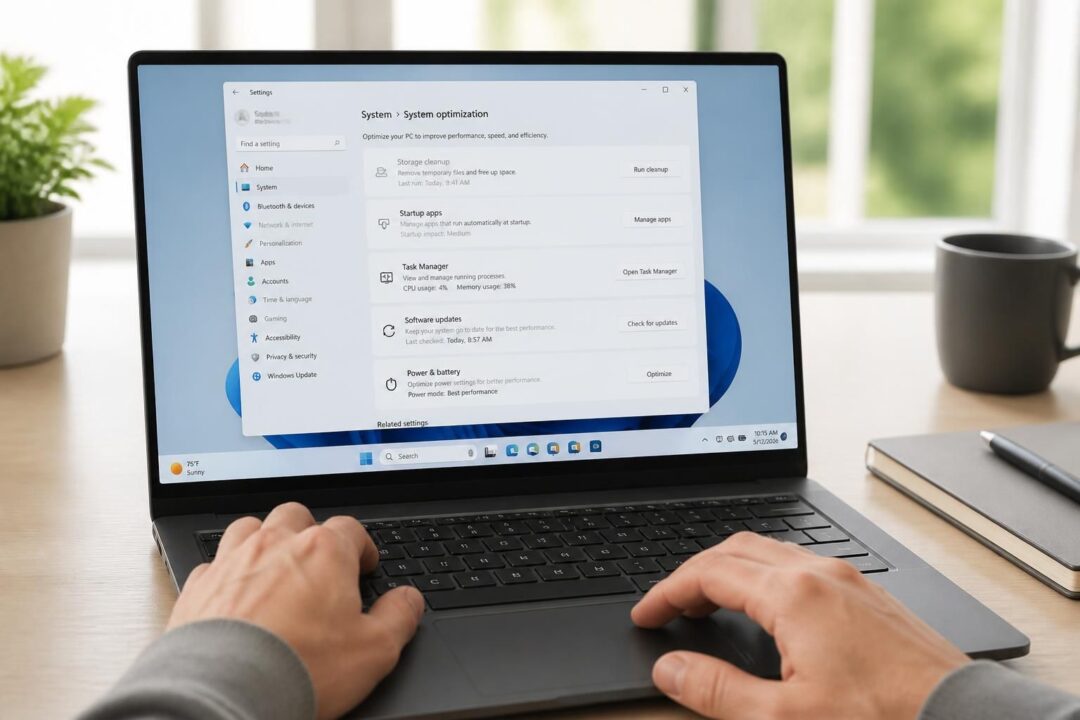
- Start with evidence, not guesses: Task Manager reveals whether CPU, Memory, Disk, or GPU pressure is causing the slow computer feel.
- Fix startup drag first: trimming startup apps often delivers the biggest “speed up” win without spending a dime.
- Prioritize safe methods: Windows’ built-in tools (Restart, Storage, Disk Cleanup, Windows Security) beat most third-party “optimizers.”
- Watch the storage threshold: once the system drive drops under about 10–15% free space, Windows performance can fall off fast.
- Know when it’s hardware: persistent 100% disk, SMART warnings, thermal throttling, or chronic RAM pressure call for upgrades or pro help.
A slow Windows PC rarely slows down for the reason people expect. The usual suspect is “junk files,” yet field diagnostics tell a different story: startup overload, storage problems, and malware account for most real-world sluggishness. That’s good news, because the fastest improvements often come from safe methods that Windows already includes. Moreover, a structured approach prevents the classic mistake of chasing symptoms with risky “cleaner” utilities that promise miracles and deliver instability.
In 2026, everyday workloads look heavier than ever. Browsers run dozens of tabs, video calls stay open all day, and cloud sync tools constantly watch files. Consequently, small misconfigurations add up: a laptop stuck in a power-saver mode, a drive hovering near full, or a background app that insists on launching at boot. The goal here is practical PC troubleshooting that helps you speed up a slow computer while keeping the system reliable. Each section focuses on measurable performance optimization steps you can apply without cleaner tools.
Diagnose a Slow Windows PC in Minutes: Task Manager Clues That Matter
Good PC troubleshooting starts with observation. Instead of reinstalling apps or buying parts, check what the system is doing right now. Therefore, the first move for any Windows PC that feels sluggish is Task Manager, because it surfaces the bottleneck that drives the delay.
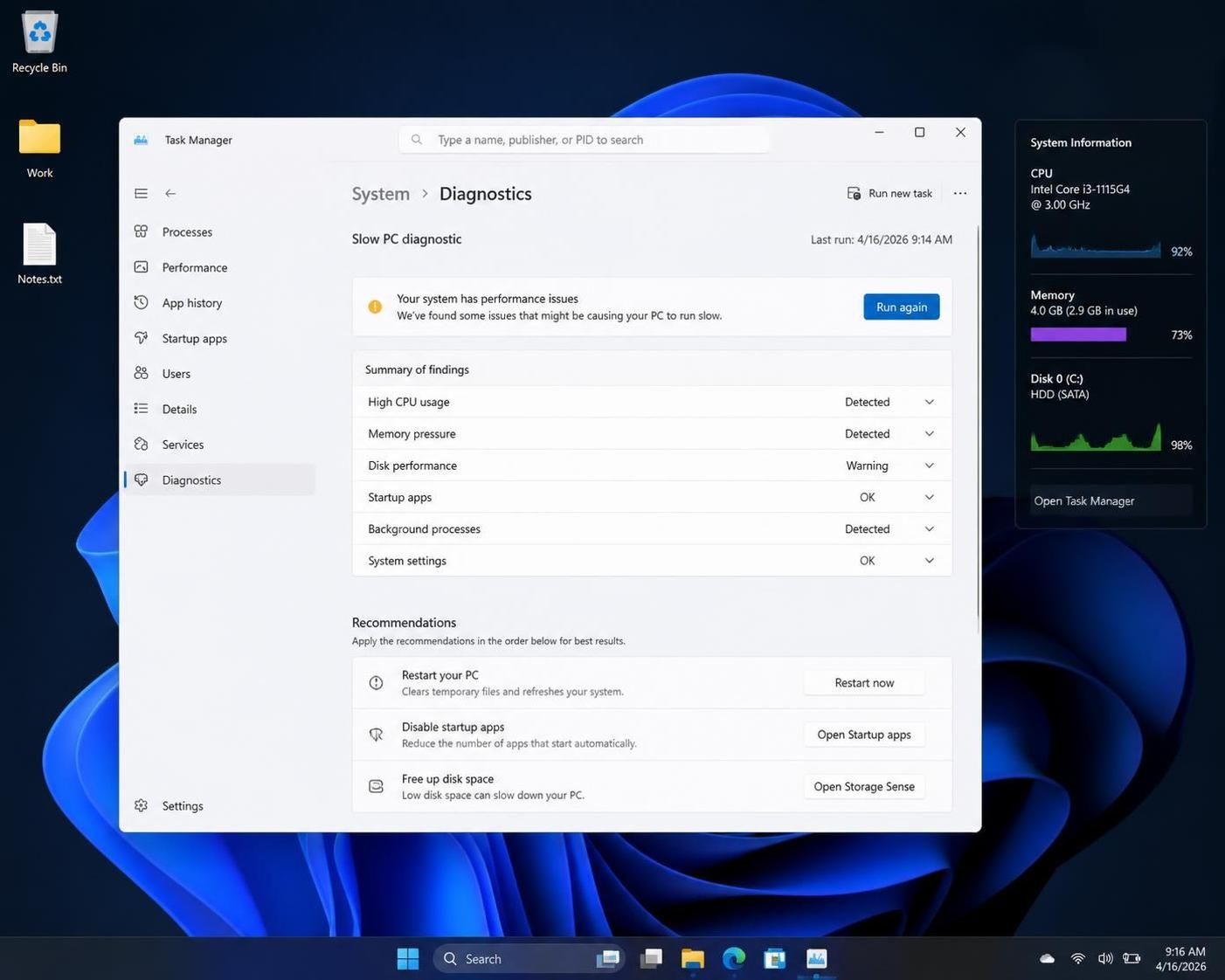
Press Ctrl + Shift + Esc to open Task Manager. If a compact view appears, select “More details”. Next, click Performance and watch four graphs: CPU, Memory, Disk, and GPU. In addition, keep the window open for a minute while doing nothing, because idle behavior often reveals runaway background tasks.
CPU, Memory, Disk, GPU: How to Interpret the Numbers
CPU should usually sit under about 30% at idle. However, if it hovers above 60–80% with no active work, a specific process is burning cycles. Switch to Processes, sort by CPU, and identify the top entry. If it’s a recognizable program, update or uninstall it. If it looks random, treat it as suspicious.
Memory pressure causes a distinct kind of slowdown: stutters when switching apps, delays when returning to a browser tab, and long pauses during multitasking. If Memory sits above roughly 85% during normal use, Windows starts swapping to disk. As a result, even a fast CPU can feel slow. Sorting the Processes list by Memory usually exposes a browser with too many tabs, an Electron app, or a background helper that ballooned.
Disk pegged at 100% is the classic “everything freezes” symptom. On a mechanical hard drive, Windows can hit that ceiling from updates, indexing, SysMain activity, or a deteriorating drive. On the other hand, sustained 100% disk on an SSD can point to a driver issue or heavy background scanning. Either way, the process list sorted by Disk gives immediate direction.
GPU spikes during games and video editing are normal. Nevertheless, high GPU usage at idle often means a browser tab playing video, a misbehaving driver, or in rare cases crypto-mining malware. If a “Video Decode” or browser process dominates, close tabs first. If an unknown process dominates, scan for threats.
A Practical Flow: Symptom to Fix, Without Guesswork
Remote support teams repeatedly see the same patterns. In one dataset of 300+ slow-PC diagnoses across 2025–2026, the leading causes were startup bloat (about 32%), failing or nearly-full drives (about 24%), and malware/adware (about 23%). Consequently, software and settings changes resolve most cases, especially when the bottleneck is visible in Task Manager.
| Task Manager Symptom | Most Likely Cause | Best Next Safe Method |
|---|---|---|
| Slow only at startup, improves after 5–10 minutes | Too many startup apps | Disable startup items and remove bloat |
| Disk at 100% for long stretches | Drive near full, HDD limits, or failing storage | Free space, check drive health, consider SSD |
| Memory consistently above ~85% | Insufficient RAM or too many apps/tabs | Close heavy apps; plan a RAM upgrade |
| CPU high at idle | Runaway background process, update loop, or malware | Identify process; update/uninstall; scan |
| PC slow on battery but fine plugged in | Power mode throttling | Switch to Balanced/Best performance |
Once the bottleneck is known, the fixes become targeted. That focus matters, because the next step is reducing background load rather than “cleaning” the registry. The payoff is speed with stability.
Next, the fastest wins usually come from startup and background app control, which is where many new PCs lose their edge.
Speed Up Windows Boot and Daily Responsiveness: Startup Apps, Bloatware, and Background Load
A Windows PC can feel “old” simply because too many programs launch the moment you sign in. Each one steals CPU time, reserves RAM, and adds disk activity. Therefore, startup optimization remains the highest-impact free fix for many users trying to speed up a slow computer.
Restart the Right Way (It Matters More Than Most People Think)
Windows uses Fast Startup on many systems. Consequently, “Shut down” may not fully clear system state the way people assume. Use Start > Power > Restart to force a full refresh of RAM, driver state, and caches. Then wait a few minutes after login, because updates and indexing can briefly spike usage.
This simple step often resolves unexplained sluggishness after days of sleep-and-wake cycles. Moreover, it sets a clean baseline before changing settings.
Disable Startup Items Safely (Without Breaking Essentials)
Open Task Manager and select Startup apps. Sort by Startup impact and disable anything that does not need to run immediately. For instance, music players, game launchers, meeting apps, and vendor “update checkers” can wait until you open them.
However, leave security and core drivers alone. Keep Windows Security, audio components, and hardware utilities you rely on. If a name seems unfamiliar, right-click and choose Search online. That quick check prevents disabling something critical.
- Usually safe to disable: Spotify, Discord, Steam, Zoom, Adobe updaters, “helper” apps, many printer tray tools.
- Use caution: VPN clients (if required for work), fingerprint/biometric services, touchpad utilities on laptops.
- Never “optimize” by force: don’t use aggressive one-click booster apps; they often create instability.
Consider a simple case study: a midrange laptop that boots “slow” for ten minutes. Task Manager shows 24 startup entries, including two cloud sync tools and several vendor utilities. After disabling 12 non-essentials, login becomes responsive in under two minutes. That kind of gain happens because fewer background tasks compete for the same resources.
Remove Manufacturer Bloatware the Right Way
Some new machines ship with trialware, duplicate security suites, and branded control centers that phone home. While a few utilities help manage hotkeys or battery features, many add little value. Therefore, open Settings > Apps > Installed apps and uninstall what is not used.
As a rule, remove duplicate antivirus tools if Windows Security is active, and uninstall “PC optimizer” programs that advertise registry cleaning. Those tools rarely improve real performance. Worse, they can cause broken settings, nag screens, and crashes. In addition, they can push risky “fixes” that increase support problems later.
To keep the system lean, pair startup trimming with smarter storage hygiene. That shift leads naturally to disk space and disk health, which often hides behind “random” slowness.
Fix 100% Disk Usage and Low Storage: Built-in Cleanup, Update Behavior, and Drive Health Checks
When a system drive runs low on free space, Windows loses room for virtual memory, update staging, and temporary data. As a result, the machine can slow down dramatically even if the CPU looks fine. Moreover, persistent 100% disk activity can signal an aging hard drive that struggles to keep up.
Hit the Free-Space Target First
Check File Explorer > This PC and look at the C: drive bar. If it’s red or close to full, aim to regain at least 10–15% free. That buffer matters because Windows needs working space to remain responsive.
Start with quick wins. Empty the Recycle Bin, then clean the Downloads folder, which often becomes a long-term storage dump. Next, uninstall large apps you no longer use. Finally, move photos and videos to external storage or a trusted cloud provider. These are safe methods that do not gamble with system internals.
Use Disk Cleanup and Storage Features (Without Third-Party “Cleaner” Tools)
Windows includes cleaning tools that remove temporary files safely. Search for Disk Cleanup, select C:, and then choose “Clean up system files”. This step can recover sizable space, especially after upgrades. In addition, Windows Storage settings offer “Cleanup recommendations” that target large files and unused apps.
Unlike many registry cleaners, these built-in tools focus on disposable data. Therefore, they reduce clutter without risking system stability. If the goal is dependable system maintenance, that distinction matters.
Windows Update, Indexing, and “Normal” Temporary Slowness
After a large update, Windows may spend 30–90 minutes optimizing in the background. Consequently, disk usage can spike and the PC may feel unresponsive. If Task Manager shows Windows Update processes working, patience often beats intervention. Let the machine sit plugged in, and it typically settles down.
Search indexing can show similar behavior. Nevertheless, indexing should taper off, not run nonstop for days. If it persists, check Indexing Options and narrow indexed locations, especially on older hard drives.
Check Drive Health Before Data Loss Forces the Issue
If disk usage stays pinned and the PC also freezes, test storage health. Tools that read SMART data can flag a drive in decline. A “Caution” status suggests planning a replacement soon. A “Bad” warning calls for an immediate backup.
Even without specialized tools, warning signs include repeated hangs during file copies, clicking noises from older HDDs, or frequent “disk” events in system logs. Therefore, treat storage problems as both a performance issue and a data safety issue.
At this point, the machine may feel faster, yet unexplained slowness can still linger. The next area to rule out is unwanted software, because malware remains a major driver of performance complaints.
Malware, Adware, and Browser Drag: Safe Scanning and Cleanup That Actually Improves Performance
Pop-ups, redirects, and a browser that suddenly feels heavy often indicate adware rather than “Windows aging.” In many real-world cases, malware or potentially unwanted programs explain a big slice of slowdowns. Therefore, treating security as performance optimization is practical, not alarmist.
Recognize the “Not Just Slow” Symptoms
Performance problems tied to unwanted software usually come with extra clues. For instance, the fan may run constantly, network activity may spike at idle, or new browser toolbars may appear. Moreover, Task Manager may show a strange process name consuming CPU or GPU.
One common scenario involves a family PC used for coupon searches. The machine starts redirecting searches and loading “helper” extensions. Consequently, Chrome takes ages to open and tabs lag. The fix is not a registry scrub. The fix is removing the hijacker and its extensions.
Run Windows Security First, Then Add a Second Opinion
Open Windows Security and run a Full scan. That scan can take a while, yet it often finds common threats. However, adware and browser hijackers sometimes slip through. As a result, follow up with a reputable second-opinion scanner such as Malwarebytes (from the official site).
This two-step approach stays aligned with safe methods. It avoids shady “one-click boost” suites that bundle adware. It also keeps the focus on measurable outcomes: fewer background processes, lower CPU at idle, and normal browser behavior.
Browser-Specific PC Troubleshooting That Pays Off Fast
If the slowdown mainly lives in the browser, treat the browser as its own system. First, reduce tab count and remove unused extensions. Next, reset search providers and startup pages if they changed without consent. Then update the browser, because outdated builds can run slower and remain vulnerable.
In addition, check hardware acceleration settings if video playback stutters. Sometimes a broken graphics driver makes the browser render poorly. Consequently, updating the GPU driver from NVIDIA, AMD, or Intel can restore smooth scrolling and video decode performance.
Why “Cleaner” Tools Often Make Security Worse
Many PC “cleaner” apps fund themselves by exaggerating problems. They may display thousands of “errors” to pressure upgrades. Worse, some installers bundle adware that creates the very slowness they claim to solve. Therefore, sticking to Windows Security, reputable scanners, and built-in cleanup tools remains the safer path for a Windows PC in daily use.
With security and storage under control, the remaining slowdowns often come from power limits, heat, or underpowered hardware. That transition matters, because the next fixes determine whether upgrades are worth it.
Laptop Power, Heat, and Hardware Upgrades: When Performance Optimization Needs New Parts
Software tuning can only go so far. If a system lacks RAM, throttles from heat, or relies on a mechanical hard drive, it can feel slow even after perfect cleanup. Therefore, the final layer of PC troubleshooting is matching symptoms to the right upgrade.
Power Modes: The Hidden Speed Limit on Laptops
A laptop may run fine on the charger and crawl on battery. In that case, check Windows power mode. Power Saver can clamp CPU performance to extend runtime. Consequently, everyday tasks like opening menus or launching apps feel delayed.
Switch to Balanced for normal use. For demanding tasks, choose a higher performance mode if available. Additionally, test again while plugged in to confirm the diagnosis. If performance jumps instantly, the issue was policy, not “aging hardware.”
Thermal Throttling: When Heat Forces the CPU to Slow Down
Heat-related slowdowns feel dramatic. The PC starts fast, then drags after several minutes of video calls or gaming. Fans roar, and the chassis gets hot. That pattern points to thermal throttling, where the CPU lowers clock speed to protect itself.
Basic fixes are straightforward. Clean vents with compressed air, and avoid soft surfaces that block airflow. Moreover, elevating the rear of a laptop by even an inch improves intake. Advanced fixes like thermal paste replacement can help older systems, although a technician should handle it if disassembly feels risky.
RAM in 2026: Practical Targets for Real-World Multitasking
Modern browsing and conferencing can consume memory quickly. If Task Manager shows Memory above 80–85% during typical use, more RAM usually helps. As a result, the system stops swapping and becomes smoother.
For many users, 8 GB is the minimum workable level, while 16 GB hits the sweet spot for multitasking. Heavy creators and gamers may benefit from 32 GB. However, check whether the laptop allows upgrades, since many thin models solder memory.
SSD Upgrades: The Most Transformative “Speed Up” Change
If the PC still uses an HDD, replacing it with an SSD changes the entire feel of Windows. Boot time drops sharply, apps launch faster, and updates complete sooner. Consequently, this upgrade often beats any software tweak.
A simple way to check: open Task Manager, go to Performance, select Disk, and read the drive type. If it shows HDD, the upgrade can be dramatic. For a five-year-old budget laptop, this single change can make the computer feel “new” again, even with the same CPU.
When the Best Safe Method Is a Clean Reinstall
Sometimes slowness persists because the Windows installation accumulated years of background services and broken components. In that case, Reset this PC with a cloud download can restore baseline speed. This step erases apps and settings, so backups matter. Nevertheless, on the same hardware, a fresh install often runs noticeably faster than a heavily burdened setup.
The key is restraint afterward. Install only what is needed, keep startup lean, and avoid suites that promise miracles without cleaner tools—because that promise often hides a trap. The best long-term insight is simple: the fastest systems stay fast when they stay uncluttered by design.
What is the fastest safe way to speed up a slow Windows PC?
Start with Task Manager to find the bottleneck, then disable unnecessary startup apps. Next, make sure the C: drive has at least 10–15% free space and run Disk Cleanup. These steps are safe methods that often deliver the biggest gains without cleaner tools.
Why does a Windows PC feel slow after an update?
Windows Update can keep working in the background for 30–90 minutes, and search indexing may also run after major changes. Therefore, high disk or CPU activity right after an update can be normal. If the slowdown lasts more than a day or two, check drivers and storage health.
How can 100% disk usage be fixed without third-party optimizers?
First, confirm which process is driving disk activity in Task Manager. Then free up storage space, let Windows Update finish, and run Disk Cleanup. If the system uses an HDD, consider an SSD upgrade. Also check drive health with a SMART reader, because a failing drive can cause sustained 100% disk.
Should a registry cleaner be used for performance optimization?
Registry cleaners rarely improve speed and can create instability. In addition, many “cleaner” tools use scary messages to sell upgrades. Stick to built-in Windows tools, reputable malware scanners, and targeted system maintenance steps instead.

I started on a corporate IT help desk in the late 1990s and spent more than 25 years in desktop support, software deployment and endpoint management for mid-sized businesses. Along the way I earned my CompTIA A+ and Microsoft certifications, and I’ve dealt with the fallout of rolling out software across an entire company. For the past decade I’ve written hands-on how-tos and comparison reviews, testing each tool on real systems before I write about it. I focus on what works, what breaks, and how to fix it.